PEBL App
The PEBL App is the browser-based control panel for your PEBL device. You connect to the device over its own WiFi network and open the app in any browser, with no internet connection or install required. From there you set the device up, build a capture schedule, and download your data and media.
Connect to a device
- Power on the device (hold the power button for 5 seconds) and wait about 20 seconds.
- On your phone or laptop, join the device's WiFi network. It is named after the serial number, for example
Subcam-D0043. Windows may report "no internet" for this network, which is expected: the device's WiFi has no internet of its own. - Open peblapp.co.uk or
10.0.0.1:8000in any browser.
Home screen
The Home screen shows a card for the connected device.
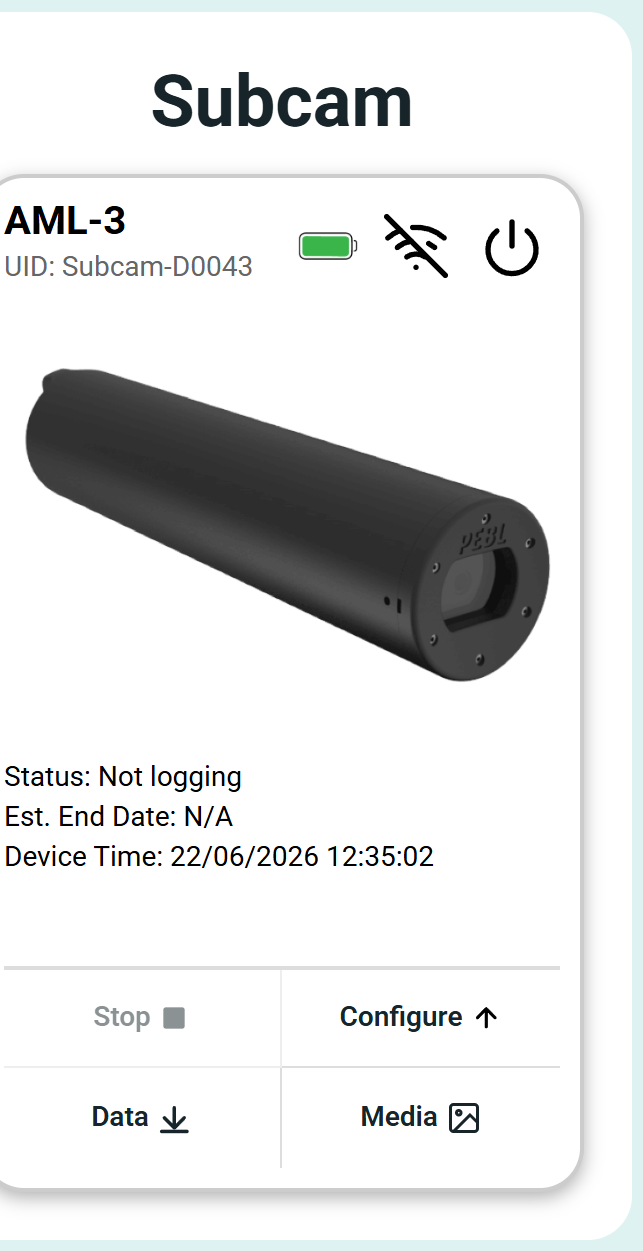
The card shows:
- The device name (here AML-3) and its UID (
Subcam-D0043). - Battery, WiFi and power icons across the top.
- Status: whether the device is logging, the next scheduled event, the estimated end date and the device time. A "Time synchronised automatically" note confirms the app has set the device clock from your computer.
- Four actions: Stop logging, Configure, Data and Media.
The left sidebar (Home, Data, Media, Configure) moves between the main screens.
info
Configure is only available when the device is not logging. If the device is currently logging, press Stop first (this ends the session but does not delete any data), then open Configure.
In this section
- Configure: deployment details, camera settings and presets, and sensor calibration.
- Schedule: build a capture schedule, or use Smart Capture.
- Data and media: download or delete logged data and captured media.