Schedule
The Schedule section is at the bottom of the Configure screen. It controls when the device wakes and what it captures. The Schedule Mode selector offers two modes: Smart Capture and Custom Schedule.
Smart Capture
Smart Capture adapts to light conditions to get the most useful recording out of a deployment. Rather than setting each event by hand, you give it a window and how many recordings per day, and it spreads them out (dawn and dusk are fixed, the remaining slots are distributed through the day).
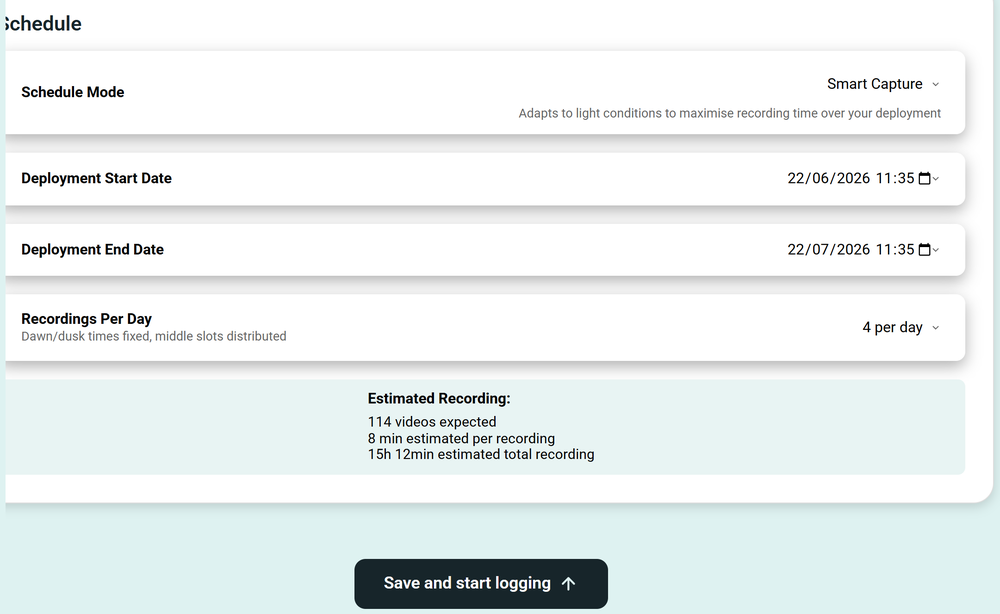
- Deployment Start Date and Deployment End Date: the window the device should cover.
- Recordings Per Day: how many capture events per day.
- Estimated Recording: a live estimate of how those settings translate into number of videos and total recording time, so you can balance coverage against the battery and storage budget.
Custom Schedule
Custom Schedule lets you define each wake event yourself. Press Add schedule to add a row.
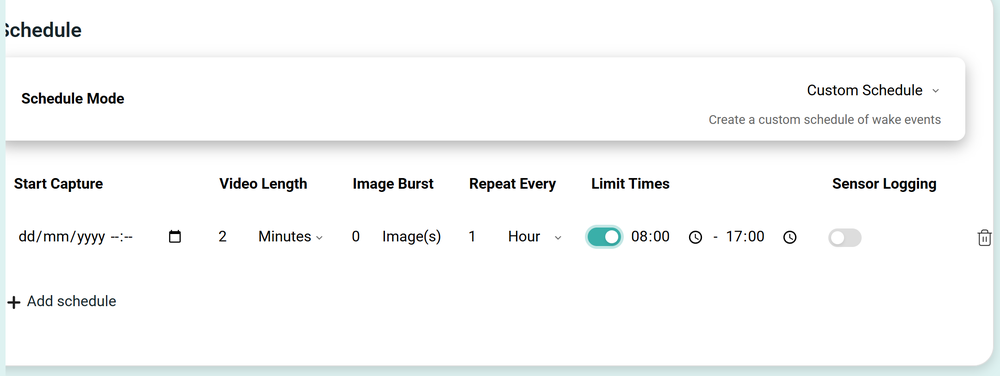
| Field | Meaning |
|---|---|
| Start Capture | The date and time the event first fires. |
| Video Length | How long to record video, in seconds or minutes. |
| Image Burst | How many still images to take at the event. |
| Repeat Every | The interval between repeats, in minutes, hours or days. |
| Limit Times | Restrict the event to a daily time window. When switched on, set a start and end time (the example shows 08:00 to 17:00) and the event only fires between those hours each day. |
| Sensor Logging | Log the on-board sensors at this event. |
Add as many rows as you need (each row has a delete button), then press Save and start logging.
Plan the schedule against the device's recording budget (up to 15 hours of video on the SubCam). Short, frequent clips stretch a deployment across weeks. Long or continuous capture uses the budget quickly.